Create a finder
WPCEAdd New Finder
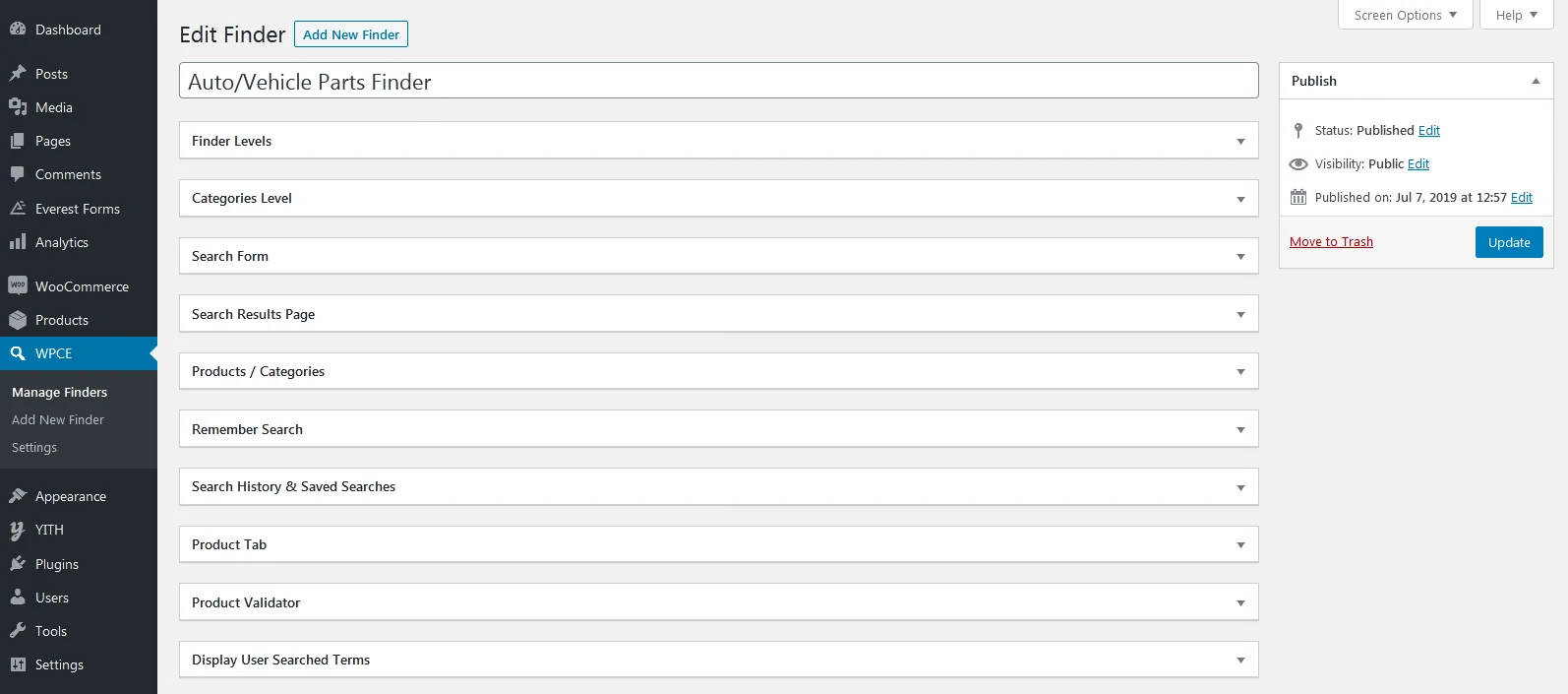
Give the finder a name, then set how many levels it needs and what each one is called. A vehicle store typically uses Make, Model, Year and Engine; a clothing store might use Brand, Type and Size. Every option on this screen carries its own help text, so you can adjust as you go.
Settle on your level names before importing terms. Changing the number of levels later means reworking the data you have already imported.
Import terms
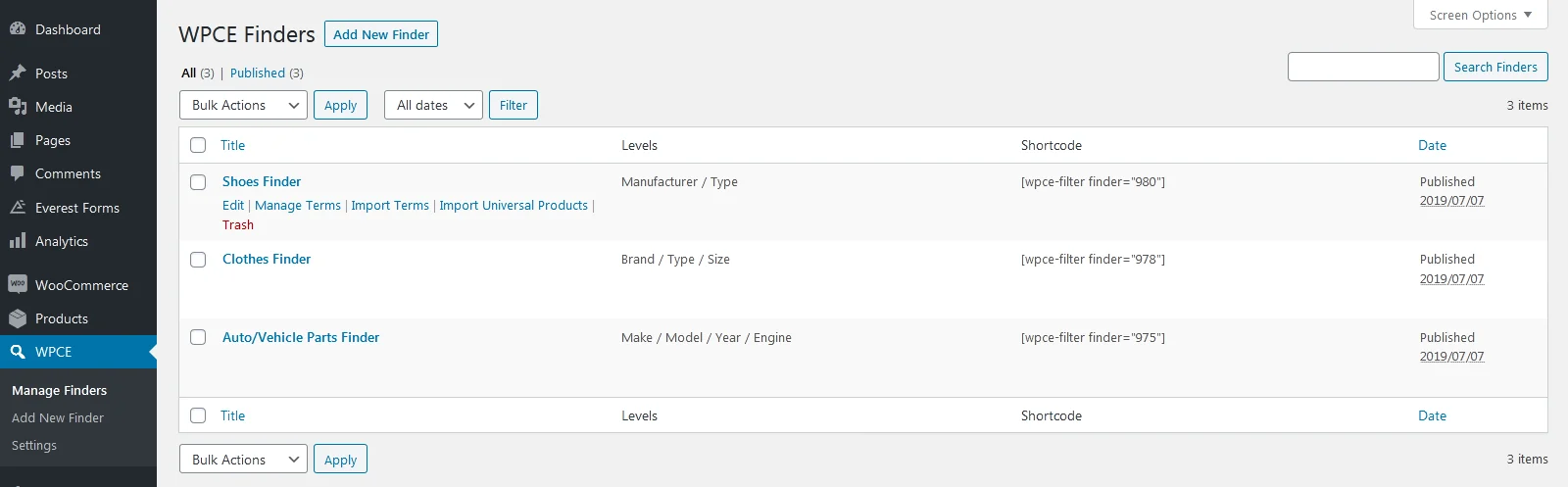
WPCEManage Findershover a finderImport Terms
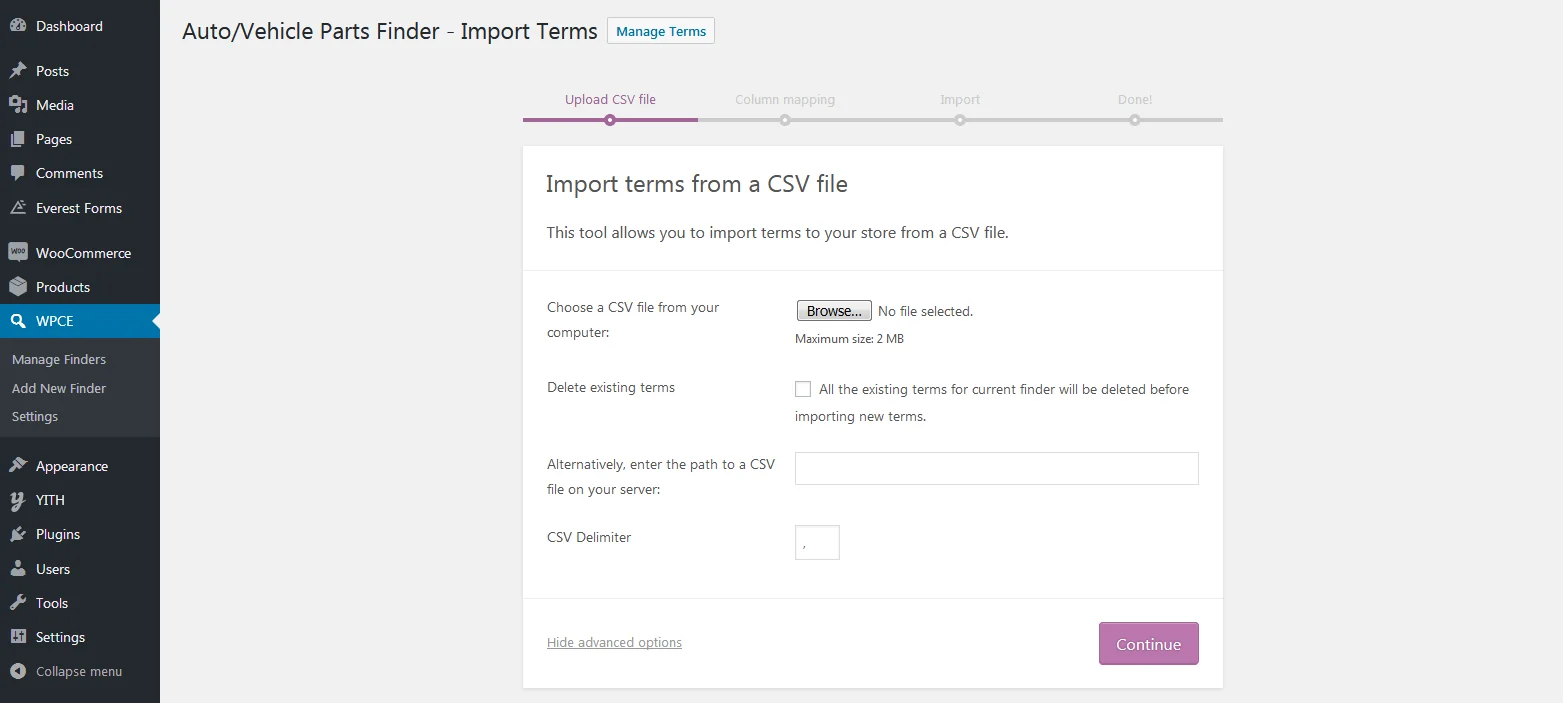
Adding terms by hand is slow, so the CSV importer does it in one pass. Each row holds the values for every level, and the importer builds the hierarchy for you. Include a SKU column and it will also create the product associations at the same time. Several SKUs can be listed in one cell, separated by commas.
Manage terms
WPCEManage Findershover a finderManage Terms
This screen shows the top level of terms only. To go deeper, hover any term and choose View Terms to see its children. You can add, rename and delete terms here at any level.
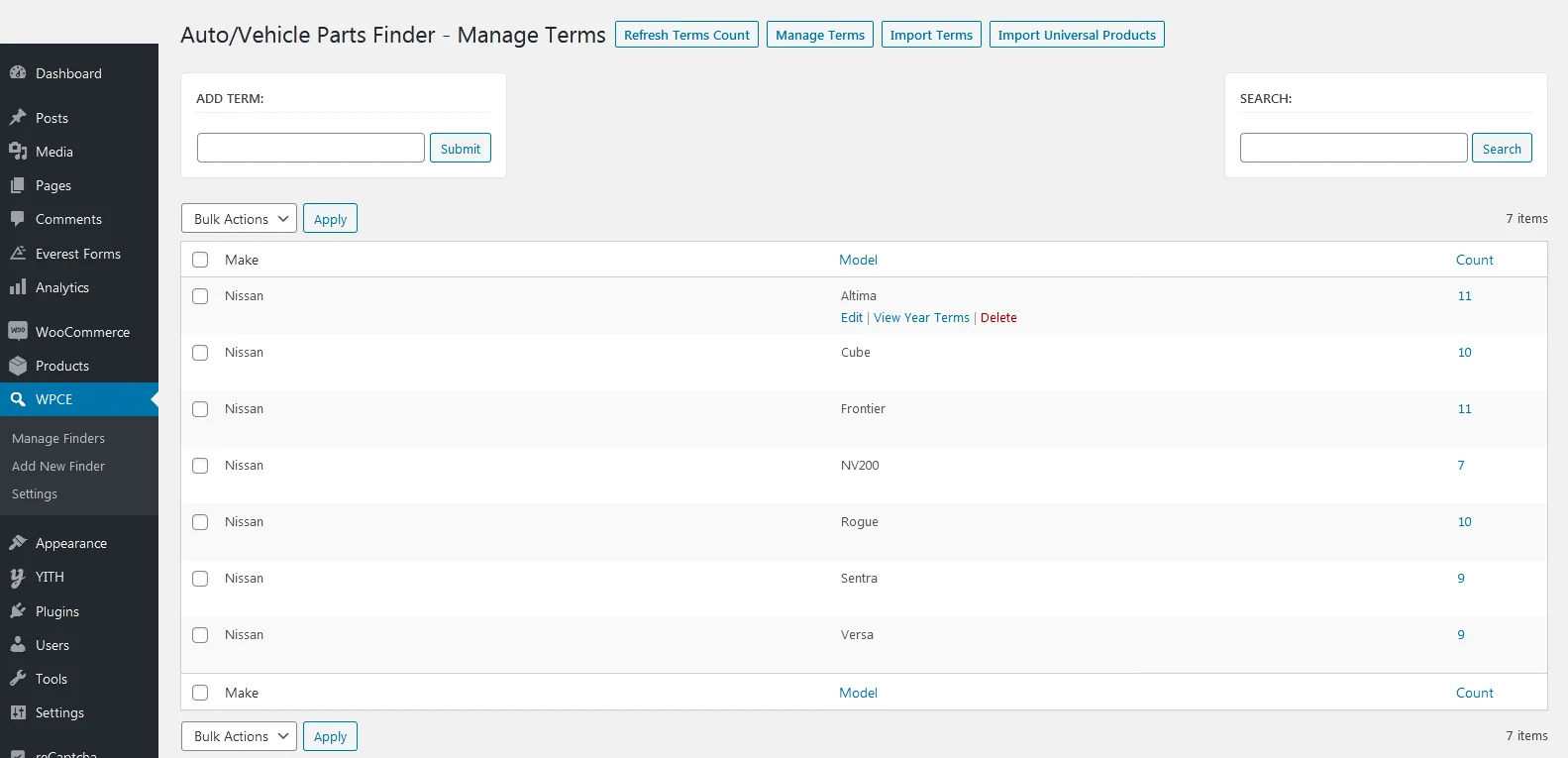
Deleting a term also deletes every term beneath it and their product associations. There is no undo.
Import universal products
WPCEManage Findershover a finderImport Universal Products
Universal products appear in every search result for this finder, whatever the customer selected. Screen wash, cleaning cloths and generic consumables are typical examples. A handful can be picked by hand in the finder’s settings; for a longer list, import them by SKU. One SKU per row, or several per row separated by commas.
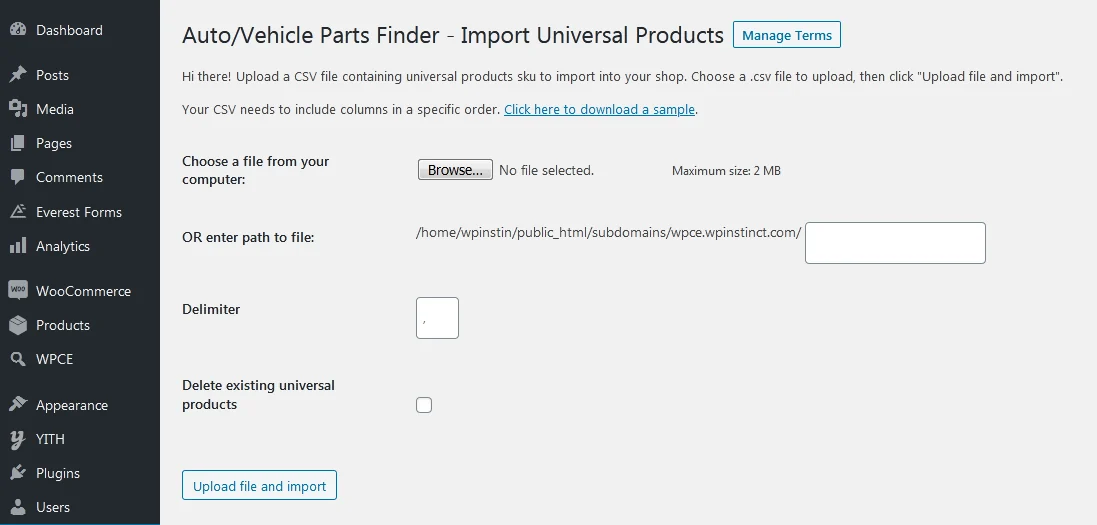
Assign terms from a product
Productshover a productEdit
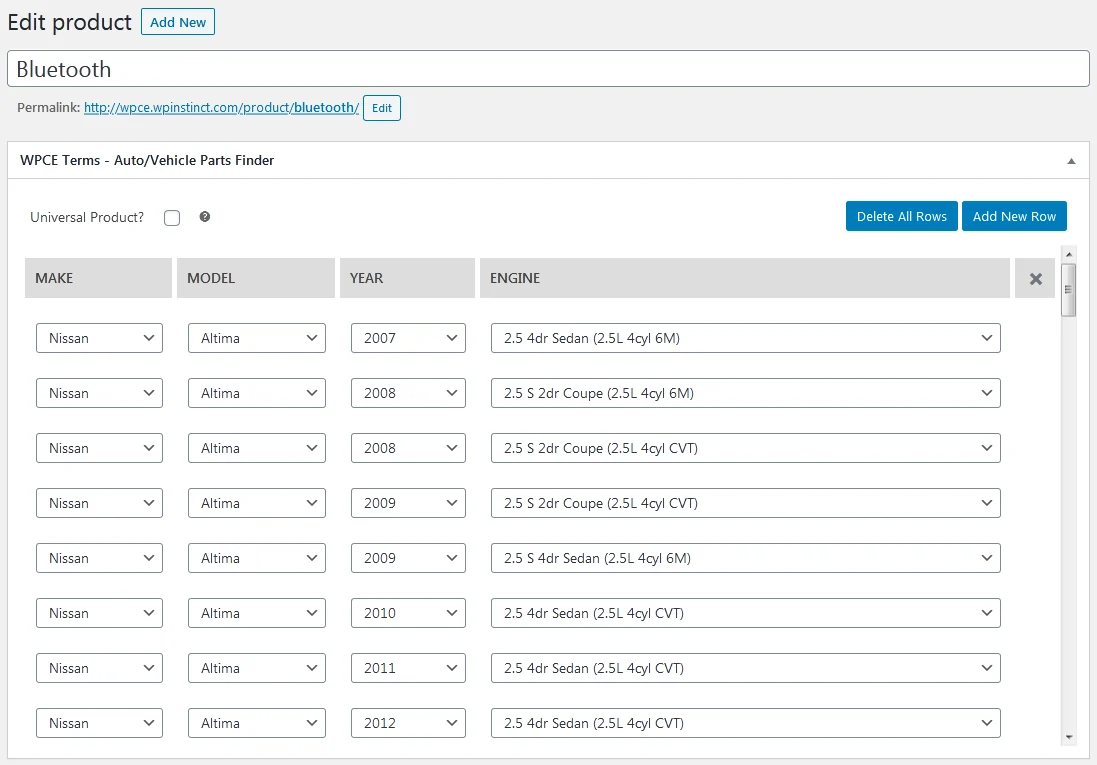
Every product edit screen gains a panel for each finder, where you can add or remove that product’s term associations by hand. This is the quickest route for one-off corrections; use the CSV importer for bulk work.