WPCEManage Findershover a finderEdit
Finder levels
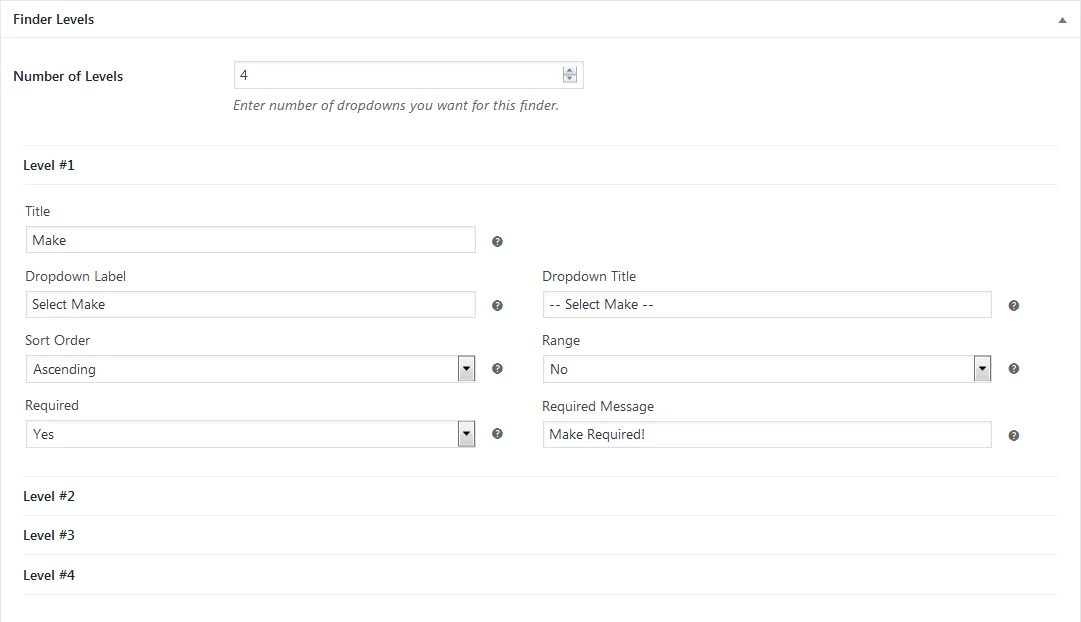
Levels are the dropdowns. Set how many you need, then configure each one.
- Number of Levels
- How many dropdowns this finder has. Each level then appears below with its own settings.
- Title
- The internal name of the level. Used as the column heading on the product tab and while managing terms.
- Dropdown Label
- The label shown above or beside the dropdown on your site. For example,
Select Make. - Dropdown Title
- The first option inside the dropdown, before anything is chosen. For example,
-- Select Make --. - Sort Order
- Sorts this level’s terms ascending or descending. Descending is useful for years, so the newest appears first.
- Range
- Set to Yes when the level holds ranges rather than single values, such as model years like
2010-2015. It lets a product match every year within the range. - Required
- Forces the customer to choose from this dropdown before they can search.
- Required Message
- What they see if they try to search without choosing.
Categories level
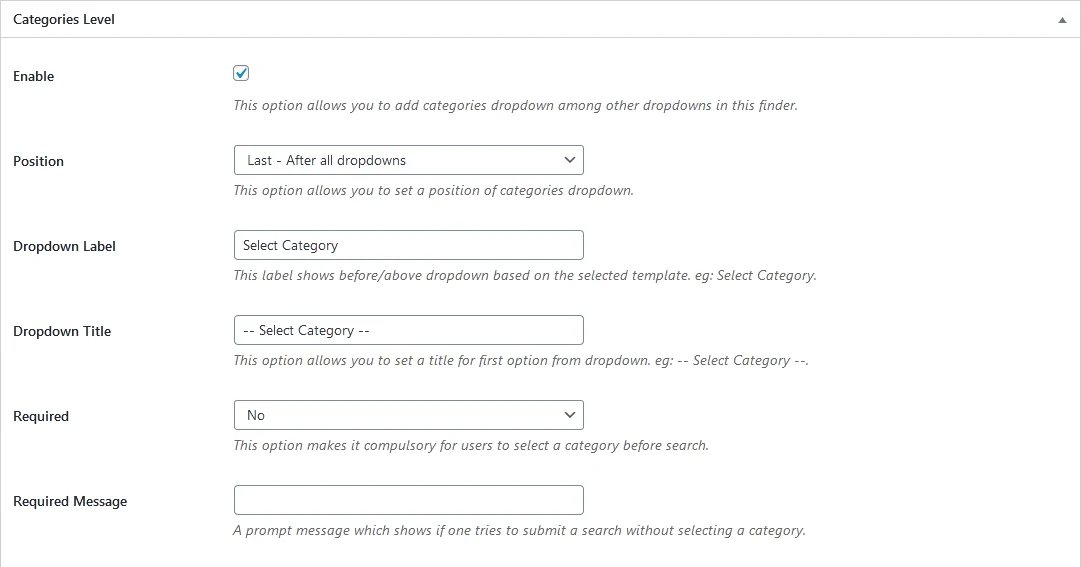
Adds a WooCommerce product categories dropdown alongside your own levels. This is useful when one finder serves several kinds of product.
- Enable
- Adds the categories dropdown to this finder.
- Position
- Where the categories dropdown sits relative to your other dropdowns.
- Dropdown Label
- The label shown above or beside the dropdown.
- Dropdown Title
- The first option inside the dropdown.
- Required
- Forces a category to be chosen before searching.
- Required Message
- What they see if they try to search without choosing one.
Search form
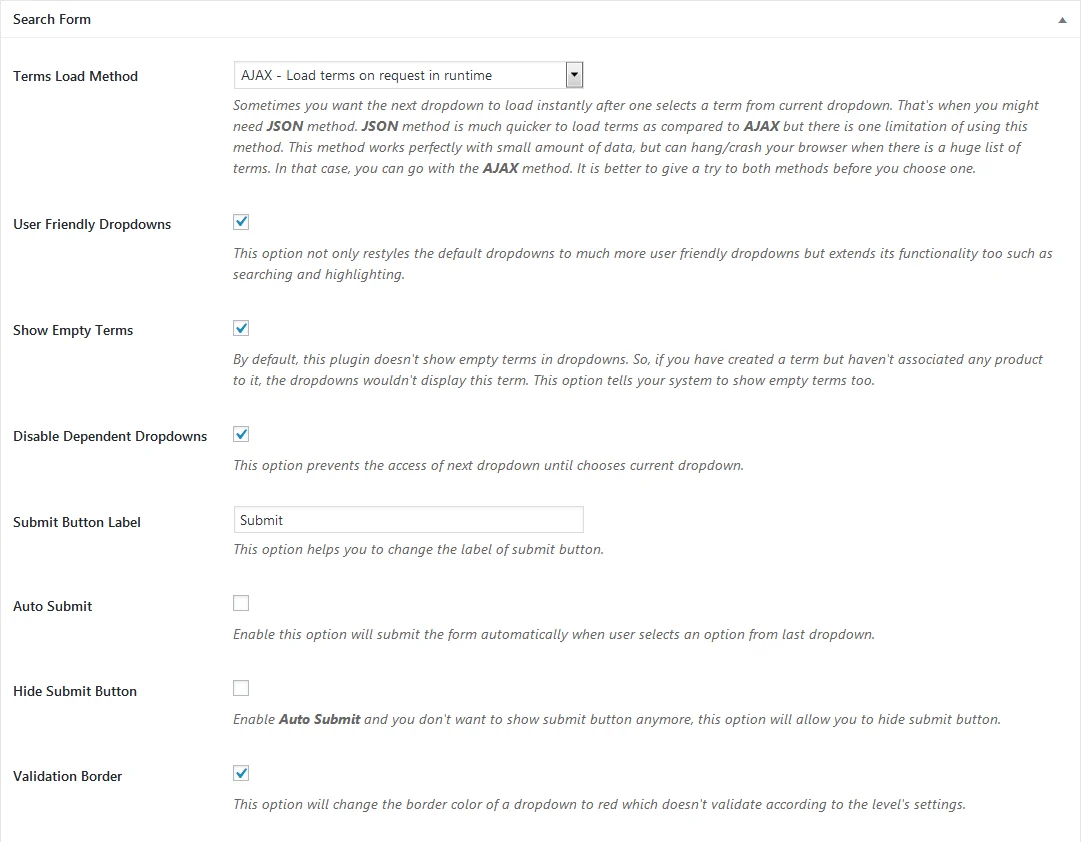
How the form itself behaves for the customer.
- Terms Load Method
- AJAX fetches each dropdown’s terms when it is needed. JSON loads everything with the page, which feels instant but can slow or hang the browser on very large term sets. Try both on your own data before deciding.
- User Friendly Dropdowns
- Restyles the dropdowns and adds type-to-search and highlighting inside them.
- Show Empty Terms
- Terms with no products attached are hidden by default. Turn this on to show them anyway.
- Disable Dependent Dropdowns
- Locks the next dropdown until the current one has a value.
- Submit Button Label
- The wording on the submit button.
- Auto Submit
- Runs the search as soon as the last dropdown is chosen.
- Hide Submit Button
- Removes the button entirely. Pair with Auto Submit.
- Validation Border
- Outlines a dropdown in red when it fails that level’s rules.
Search results page
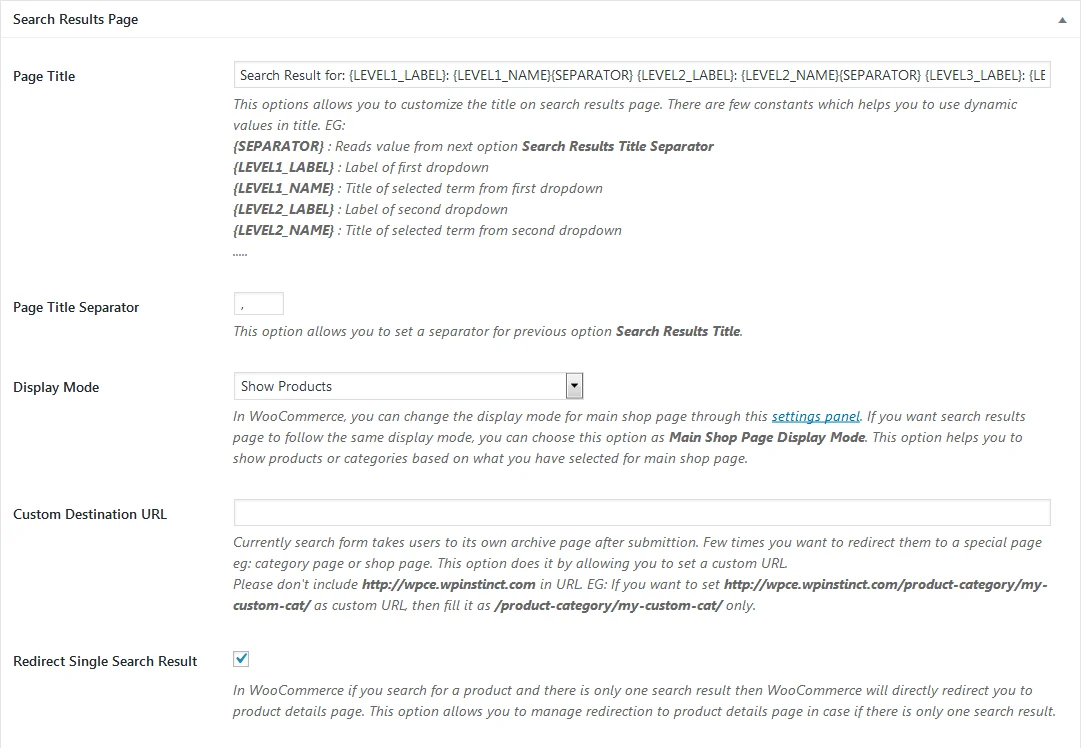
Where customers land after searching, and what they see there.
- Page Title
- Builds the heading on the results page. Use
{LEVEL1_LABEL}for the first dropdown’s label,{LEVEL1_NAME}for the term chosen in it, and so on for each level.{SEPARATOR}inserts the separator set below. - Page Title Separator
- What
{SEPARATOR}resolves to. - Display Mode
- Show products directly, or follow whatever display mode your main shop page uses in WooCommerce.
- Custom Destination URL
- Sends customers somewhere other than the default results archive, a category page for instance. Enter a relative path only, such as
/product-category/my-custom-cat/. - Redirect Single Search Result
- WooCommerce normally jumps straight to the product when a search returns exactly one result. This controls that.
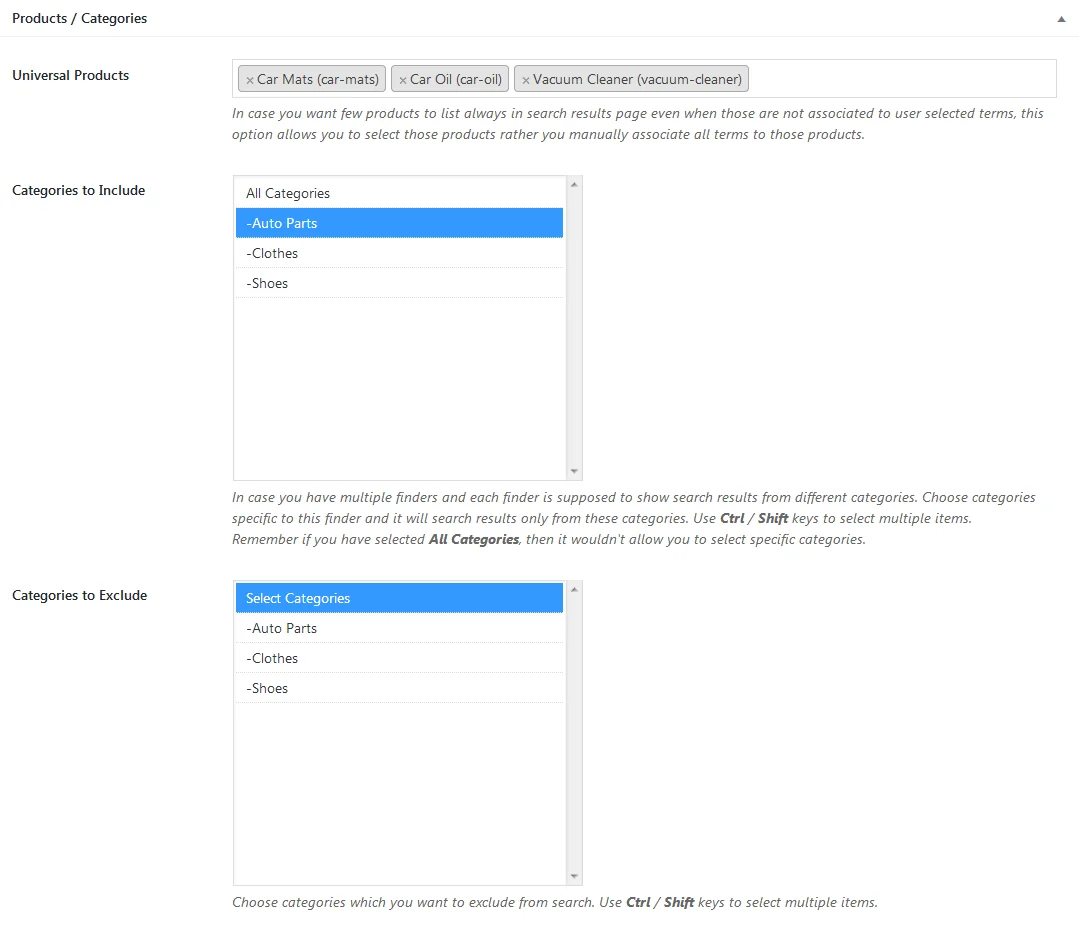
Products / categories
Which products and categories this finder works across.
- Universal Products
- Products that appear in every result for this finder, regardless of selection. For more than a handful, use the universal products importer instead.
- Categories to Include
- Restricts this finder’s results to specific categories. This is useful when several finders each serve a different part of the catalogue. Ctrl or Shift to multi-select. Choosing All Categories blocks specific selections.
- Categories to Exclude
- Categories to leave out of this finder’s results. Ctrl or Shift to multi-select.
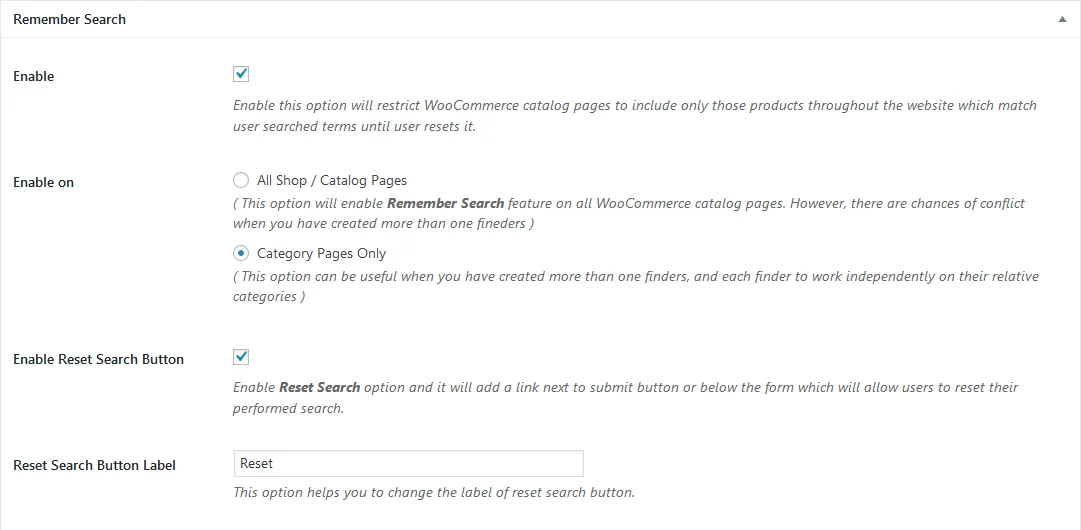
Remember search
Keeps a customer’s selection active while they browse, so the catalogue stays filtered to what fits.
- Enable
- Limits catalogue pages to products matching the customer’s search until they reset it.
- Enable on
- All Shop / Catalog Pages applies it everywhere. Category Pages Only suits sites running several finders that should each work independently on their own categories.
- Enable Reset Search Button
- Adds a reset link by the submit button, or below the form, so customers can clear their search.
- Reset Search Button Label
- The wording on that link.
Category Pages Only is usually the safer choice. With All Shop / Catalog Pages, two finders can end up filtering the same page and fighting each other.
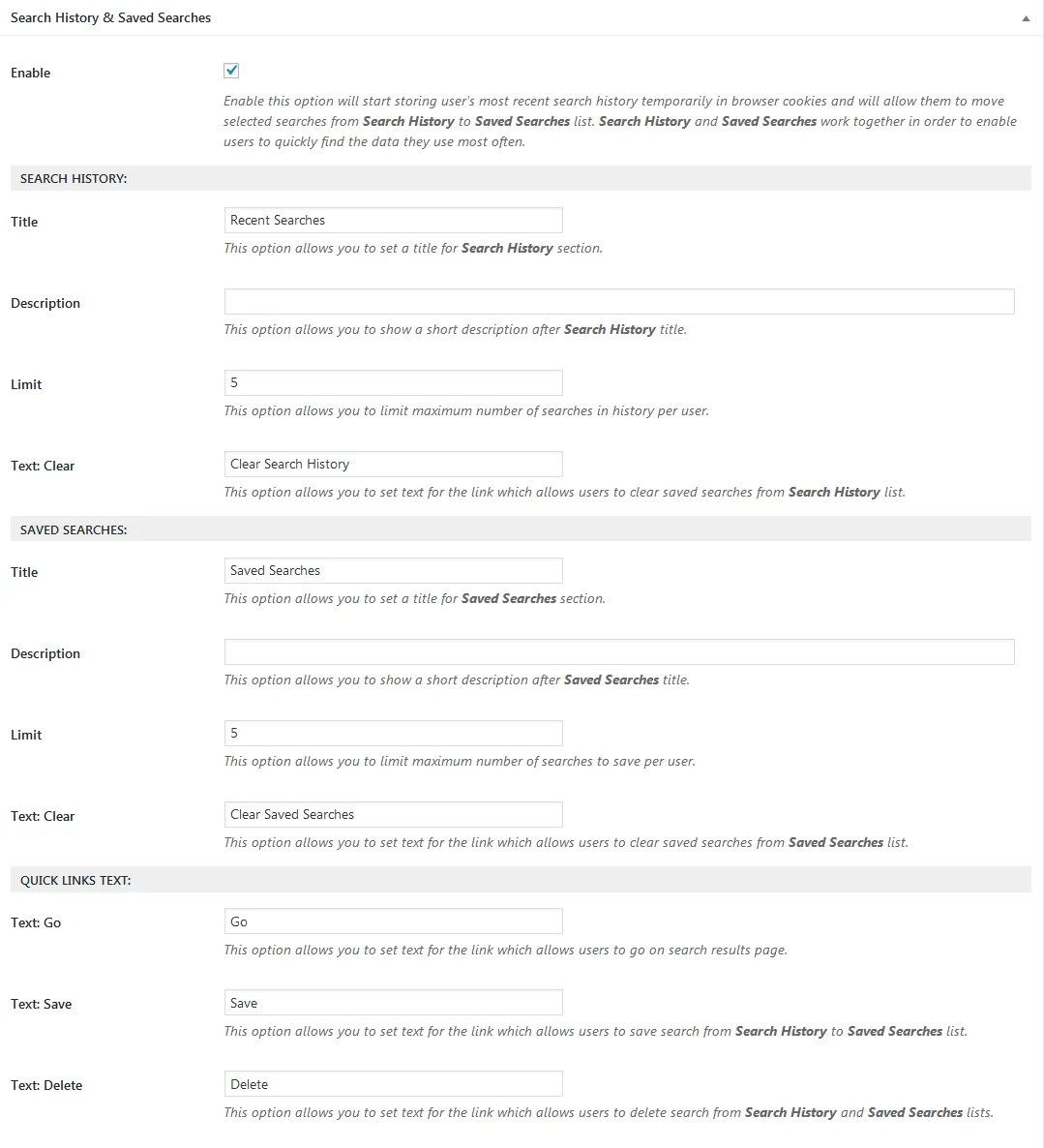
Search history & saved searches
Two lists that work together. History fills automatically as customers search, while saved searches are the ones they choose to keep. Both appear through the User Searches widget or shortcode.
- Enable
- Starts recording recent searches and lets customers move any of them into their saved list.
- History: Title / Description
- Heading and optional intro line for the history list.
- History: Limit
- How many recent searches to keep per customer.
- History: Text: Clear
- Wording of the link that empties the history list.
- Saved: Title / Description
- Heading and optional intro line for the saved list.
- Saved: Limit
- How many searches each customer can save.
- Saved: Text: Clear
- Wording of the link that empties the saved list.
- Go / Save / Delete
- Wording of the three links on each entry: run it again, keep it, or remove it.
Recent searches live in the visitor’s browser, so clearing cookies clears the list. Saved searches belong to a logged-in account and persist.
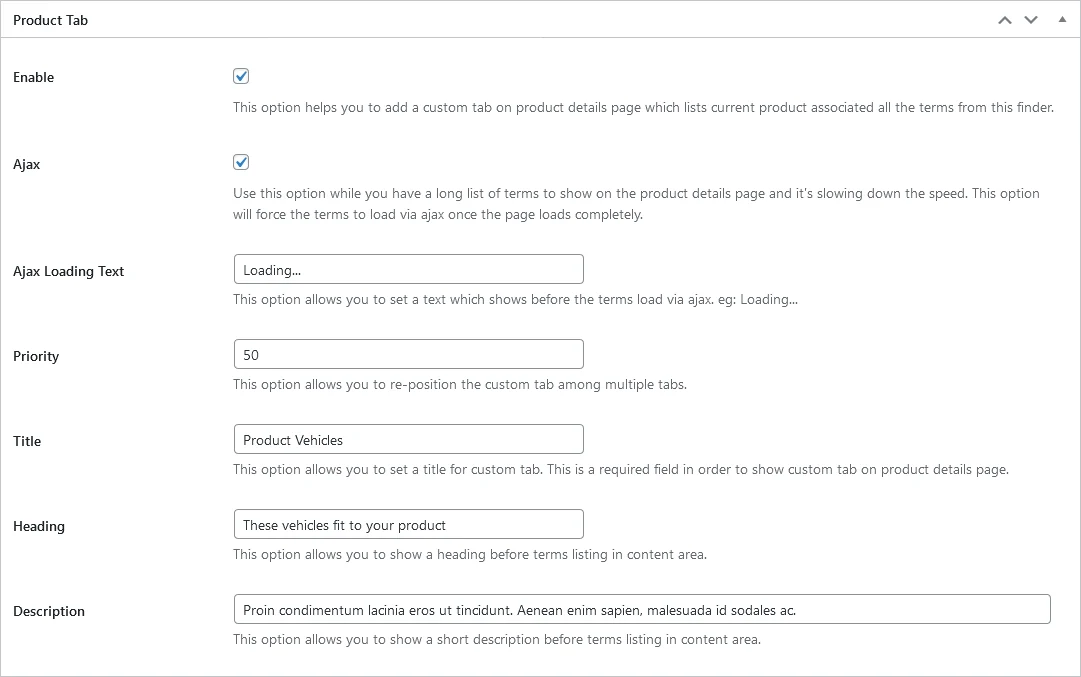
Product tab
Adds a tab on the product page listing every term that product is associated with, the “which models does this fit” table.
- Enable
- Adds the tab to product pages.
- Ajax
- Loads the list after the page has rendered. Use it when a product fits a long list of terms and the page feels slow.
- Ajax Loading Text
- Shown while the list loads. For example,
Loading… - Priority
- Position among the other product tabs. Lower numbers appear earlier.
- Title
- The tab label. This is required, and without it the tab will not appear.
- Heading
- Optional heading above the list inside the tab.
- Description
- Optional intro line above the list.
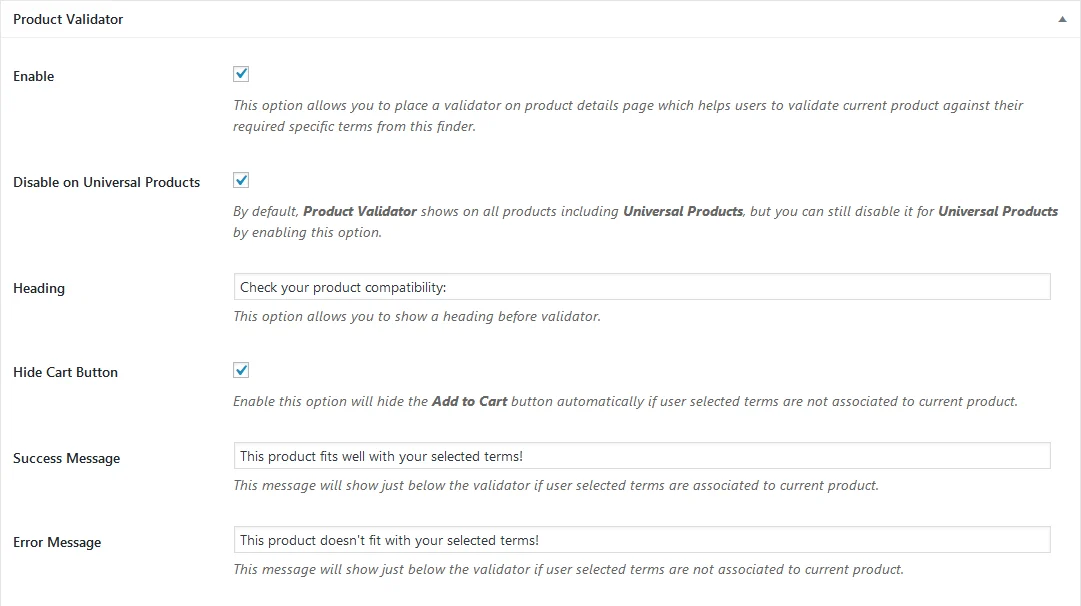
Product validator
Puts a compact finder on the product page so a customer can check that this exact product fits before adding it to the cart.
- Enable
- Shows the validator on product pages.
- Disable on Universal Products
- Hides it on universal products, which fit everything anyway.
- Heading
- Optional heading above the validator.
- Hide Cart Button
- Hides Add to Cart when the selection does not match this product.
- Success Message
- Shown when the selection matches.
- Error Message
- Shown when it does not.
Searched terms on orders
Carries the customer’s selection through to the order, so both of you can see what a product was bought for.
- Enable
- Shows the selected terms against each ordered product across cart, checkout, order details and email notifications.
