 WPCE
WPCE
WooCommerce Parts Compatibility Editor
Build product finders that only show what fits.
WPCE lets a customer narrow your catalogue by the thing they already own, whether that is a car, a printer, a machine or a garment size, and see only the products compatible with it.
- Guide covers
- Setup, settings, placement
- Built for
- WooCommerce stores
- Finders
- Unlimited, any industry
- Live demo
- wpce.wpinstinct.com
No sections match that filter. Clear the box to see everything again.
What this plugin does
A finder is a set of dropdowns you name yourself. You decide what the levels are called, import the values, and associate products against them. WPCE then filters your catalogue to match.
Nothing about the plugin is specific to vehicles. The same finder structure works for printer cartridges, machinery spares, furniture fittings or clothing sizes. Only the level names and the imported values change.
Requirements
- WooCommerce must be installed and active. WPCE is a WooCommerce addon and stays dormant without it.
- Your products should already exist in WooCommerce before you associate terms to them.
- To import by SKU, your products need SKUs filled in.
How the pieces fit together
| Term | What it means |
|---|---|
| Finder | One complete search: its levels, its settings and its terms. You can run as many as you like. |
| Level | A single dropdown within a finder, such as Make, Model, Year, Brand or Size. |
| Term | One value inside a level, such as Toyota, Corolla or 2015. Terms are hierarchical, so each belongs to the term above it. |
| Association | The link between a term and a product. This is what makes a product appear in results. |
| Universal product | A product that appears in every result, regardless of what was selected. |
Where everything lives
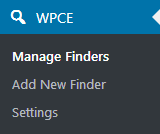
WPCE adds a single top-level menu to your WordPress admin.
- Manage Finders
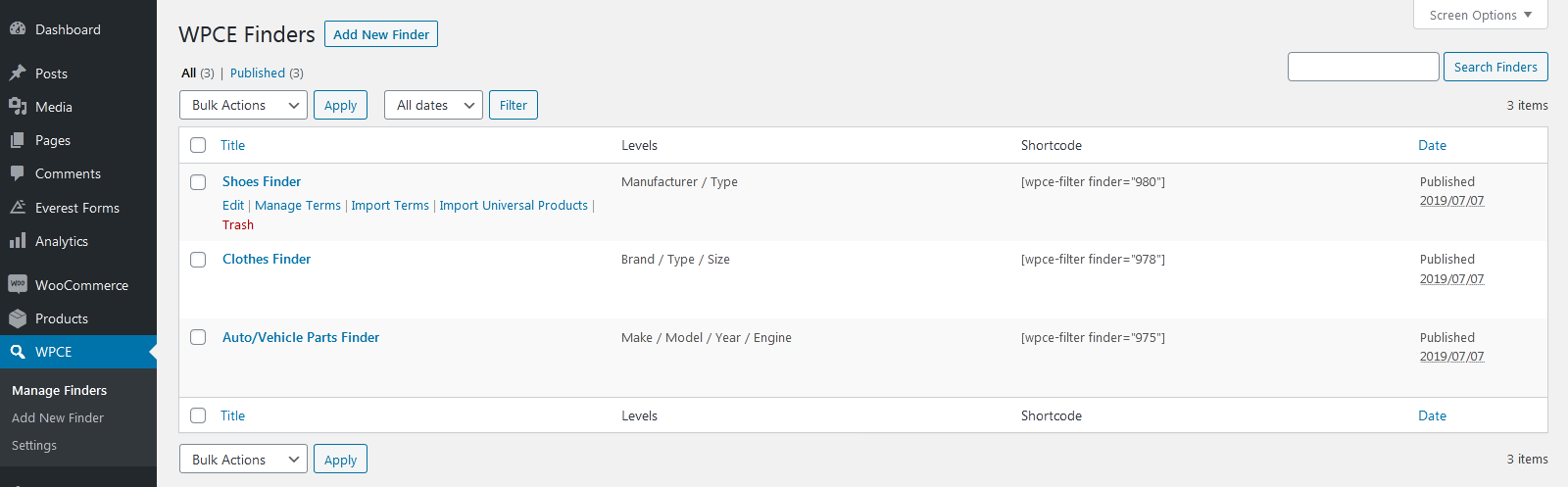
- Lists every finder you have created. Hovering a finder name reveals quick links to its terms and importers.
- Add New Finder
- Creates a finder and opens its full set of options.
- Settings
- Global settings that apply across all finders.
Five steps to a working finder
Work through these in order. Steps 4 and 5 are optional depending on how your catalogue is organised.
Create a finder
WPCE › Add New Finder
Give the finder a name, then set how many levels it needs and what each one is called. A vehicle store typically uses Make, Model, Year and Engine; a clothing store might use Brand, Type and Size. Every option on this screen carries its own help text, so you can adjust as you go.
Import terms
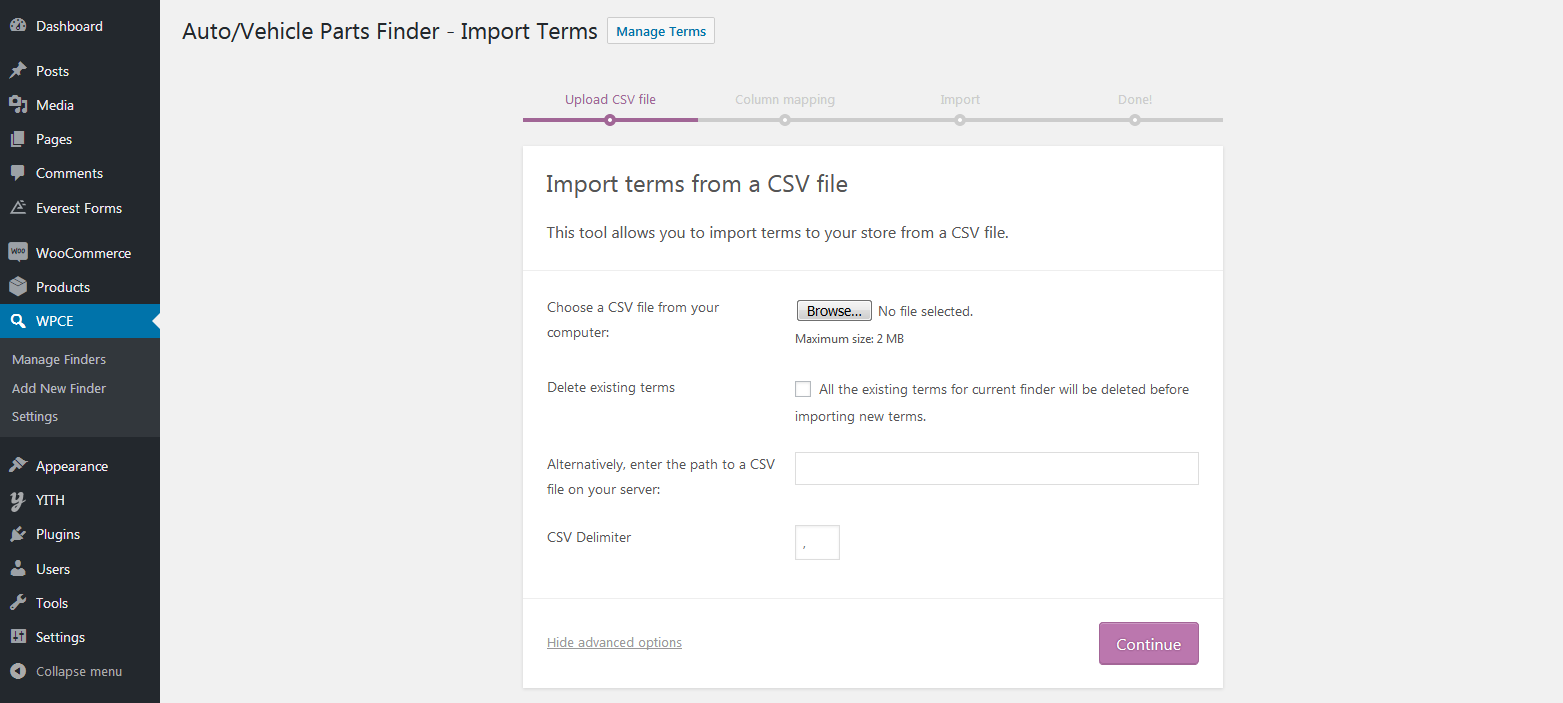
WPCE › Manage Finders › hover a finder › Import Terms
Adding terms by hand is slow, so the CSV importer does it in one pass. Each row holds the values for every level, and the importer builds the hierarchy for you. Include a SKU column and it will also create the product associations at the same time. Several SKUs can be listed in one cell, separated by commas.
Manage terms
WPCE › Manage Finders › hover a finder › Manage Terms
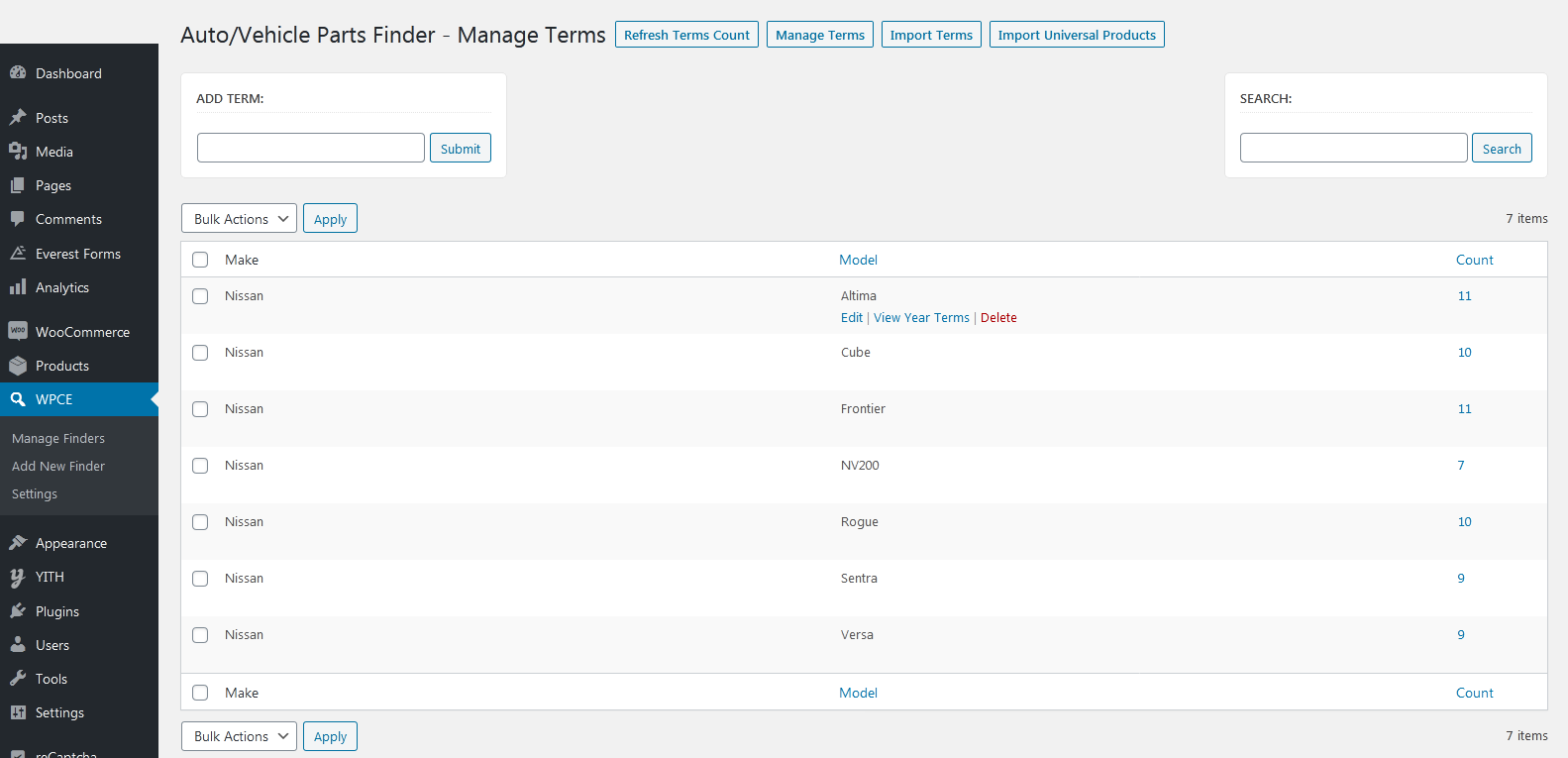
This screen shows the top level of terms only. To go deeper, hover any term and choose View Terms to see its children. You can add, rename and delete terms here at any level.
Import universal products
WPCE › Manage Finders › hover a finder › Import Universal Products
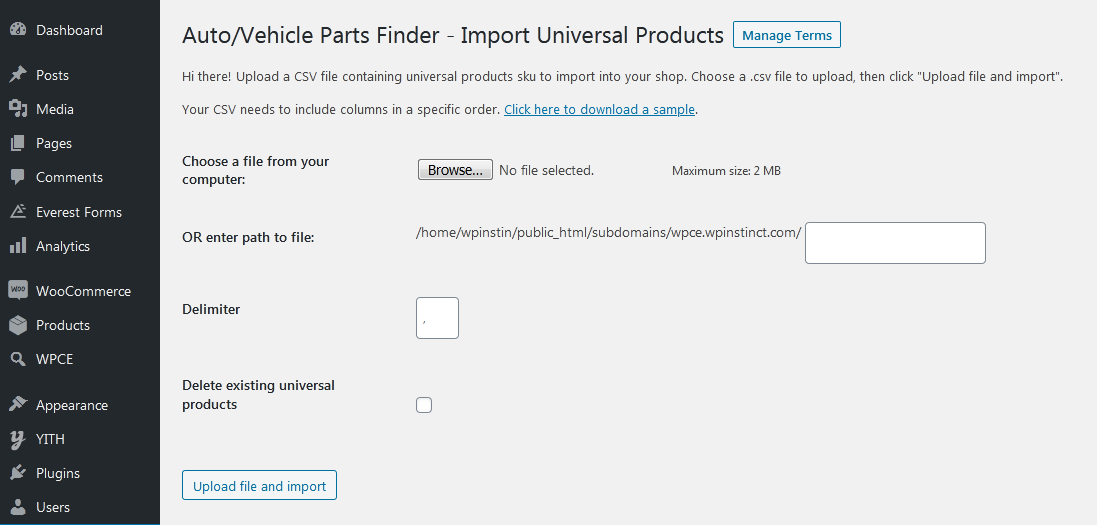
Universal products appear in every search result for this finder, whatever the customer selected. Screen wash, cleaning cloths and generic consumables are typical examples. A handful can be picked by hand in the finder's settings; for a longer list, import them by SKU. One SKU per row, or several per row separated by commas.
Assign terms from a product
Products › hover a product › Edit
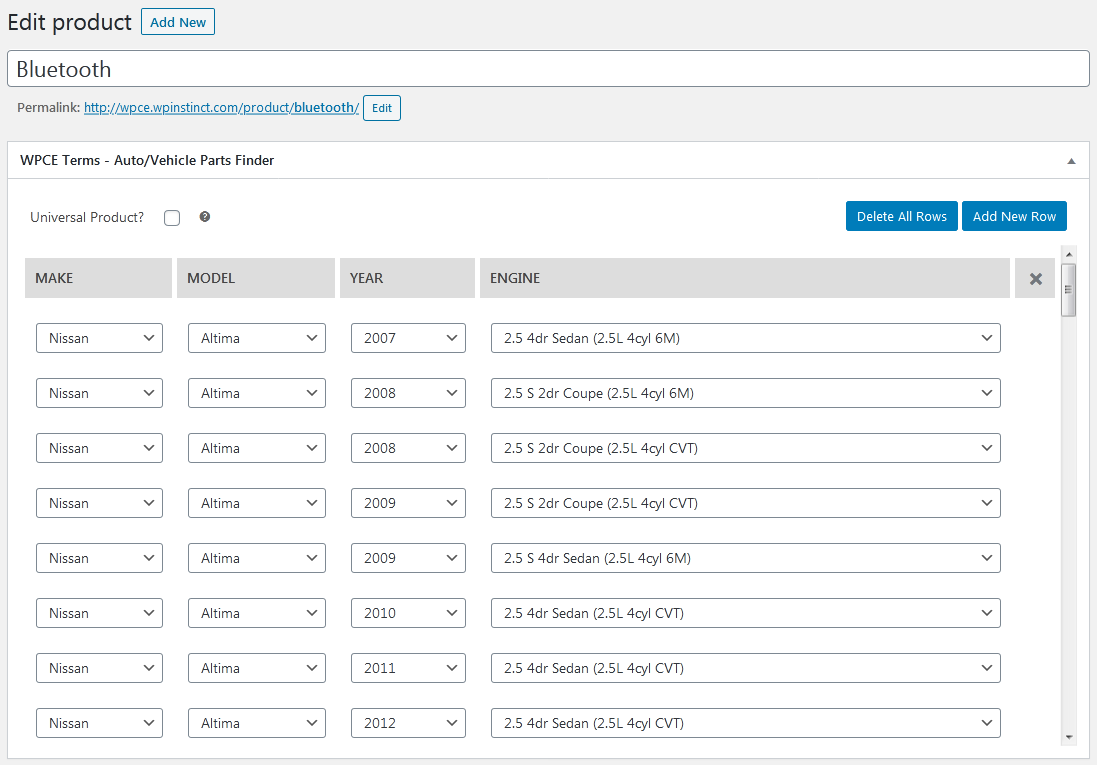
Every product edit screen gains a panel for each finder, where you can add or remove that product's term associations by hand. This is the quickest route for one-off corrections; use the CSV importer for bulk work.
Every setting, explained
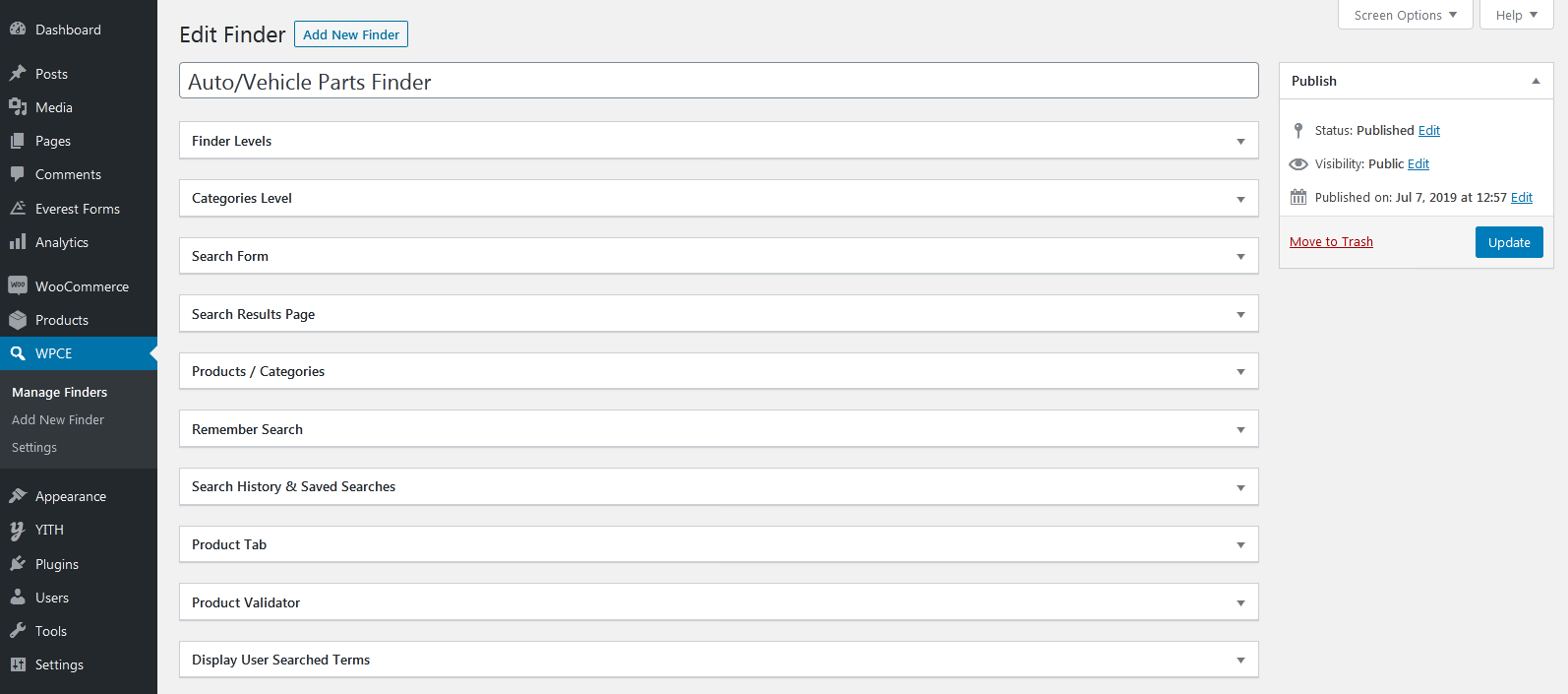
Each finder carries its own settings, grouped into the panels below. Every option also has help text on the screen itself, so this section is here for the fuller picture: what a group is for, and when you would want to change it.
WPCE › Manage Finders › hover a finder › Edit
Finder levels
Levels are the dropdowns. Set how many you need, then configure each one.
- Number of Levels
- How many dropdowns this finder has. Each level then appears below with its own settings.
- Title
- The internal name of the level. Used as the column heading on the product tab and while managing terms.
- Dropdown Label
- The label shown above or beside the dropdown on your site. For example,
Select Make. - Dropdown Title
- The first option inside the dropdown, before anything is chosen. For example,
-- Select Make --. - Sort Order
- Sorts this level's terms ascending or descending. Descending is useful for years, so the newest appears first.
- Range
- Set to Yes when the level holds ranges rather than single values, such as model years like
2010-2015. It lets a product match every year within the range. - Required
- Forces the customer to choose from this dropdown before they can search.
- Required Message
- What they see if they try to search without choosing.

Categories level
Adds a WooCommerce product categories dropdown alongside your own levels. This is useful when one finder serves several kinds of product.
- Enable
- Adds the categories dropdown to this finder.
- Position
- Where the categories dropdown sits relative to your other dropdowns.
- Dropdown Label
- The label shown above or beside the dropdown.
- Dropdown Title
- The first option inside the dropdown.
- Required
- Forces a category to be chosen before searching.
- Required Message
- What they see if they try to search without choosing one.

Search form
How the form itself behaves for the customer.
- Terms Load Method
- AJAX fetches each dropdown's terms when it is needed. JSON loads everything with the page, which feels instant but can slow or hang the browser on very large term sets. Try both on your own data before deciding.
- User Friendly Dropdowns
- Restyles the dropdowns and adds type-to-search and highlighting inside them.
- Show Empty Terms
- Terms with no products attached are hidden by default. Turn this on to show them anyway.
- Disable Dependent Dropdowns
- Locks the next dropdown until the current one has a value.
- Submit Button Label
- The wording on the submit button.
- Auto Submit
- Runs the search as soon as the last dropdown is chosen.
- Hide Submit Button
- Removes the button entirely. Pair with Auto Submit.
- Validation Border
- Outlines a dropdown in red when it fails that level's rules.

Search results page
Where customers land after searching, and what they see there.
- Page Title
- Builds the heading on the results page. Use
{LEVEL1_LABEL}for the first dropdown's label,{LEVEL1_NAME}for the term chosen in it, and so on for each level.{SEPARATOR}inserts the separator set below. - Page Title Separator
- What
{SEPARATOR}resolves to. - Display Mode
- Show products directly, or follow whatever display mode your main shop page uses in WooCommerce.
- Custom Destination URL
- Sends customers somewhere other than the default results archive, a category page for instance. Enter a relative path only, such as
/product-category/my-custom-cat/. - Redirect Single Search Result
- WooCommerce normally jumps straight to the product when a search returns exactly one result. This controls that.

Products / categories
Which products and categories this finder works across.
- Universal Products
- Products that appear in every result for this finder, regardless of selection. For more than a handful, use the universal products importer instead.
- Categories to Include
- Restricts this finder's results to specific categories. This is useful when several finders each serve a different part of the catalogue. Ctrl or Shift to multi-select. Choosing All Categories blocks specific selections.
- Categories to Exclude
- Categories to leave out of this finder's results. Ctrl or Shift to multi-select.

Remember search
Keeps a customer's selection active while they browse, so the catalogue stays filtered to what fits.
- Enable
- Limits catalogue pages to products matching the customer's search until they reset it.
- Enable on
- All Shop / Catalog Pages applies it everywhere. Category Pages Only suits sites running several finders that should each work independently on their own categories.
- Enable Reset Search Button
- Adds a reset link by the submit button, or below the form, so customers can clear their search.
- Reset Search Button Label
- The wording on that link.

Search history & saved searches
Two lists that work together. History fills automatically as customers search, while saved searches are the ones they choose to keep. Both appear through the User Searches widget or shortcode.
- Enable
- Starts recording recent searches and lets customers move any of them into their saved list.
- History: Title / Description
- Heading and optional intro line for the history list.
- History: Limit
- How many recent searches to keep per customer.
- History: Text: Clear
- Wording of the link that empties the history list.
- Saved: Title / Description
- Heading and optional intro line for the saved list.
- Saved: Limit
- How many searches each customer can save.
- Saved: Text: Clear
- Wording of the link that empties the saved list.
- Go / Save / Delete
- Wording of the three links on each entry: run it again, keep it, or remove it.

Product tab
Adds a tab on the product page listing every term that product is associated with, the "which models does this fit" table.
- Enable
- Adds the tab to product pages.
- Ajax
- Loads the list after the page has rendered. Use it when a product fits a long list of terms and the page feels slow.
- Ajax Loading Text
- Shown while the list loads. For example,
Loading… - Priority
- Position among the other product tabs. Lower numbers appear earlier.
- Title
- The tab label. This is required, and without it the tab will not appear.
- Heading
- Optional heading above the list inside the tab.
- Description
- Optional intro line above the list.

Product validator
Puts a compact finder on the product page so a customer can check that this exact product fits before adding it to the cart.
- Enable
- Shows the validator on product pages.
- Disable on Universal Products
- Hides it on universal products, which fit everything anyway.
- Heading
- Optional heading above the validator.
- Hide Cart Button
- Hides Add to Cart when the selection does not match this product.
- Success Message
- Shown when the selection matches.
- Error Message
- Shown when it does not.

Searched terms on orders
Carries the customer's selection through to the order, so both of you can see what a product was bought for.
- Enable
- Shows the selected terms against each ordered product across cart, checkout, order details and email notifications.

Putting a finder on your site
Creating a finder does not display it. Use a widget for sidebars and block areas, or a shortcode anywhere you can enter content.
Widgets
Appearance › Widgets
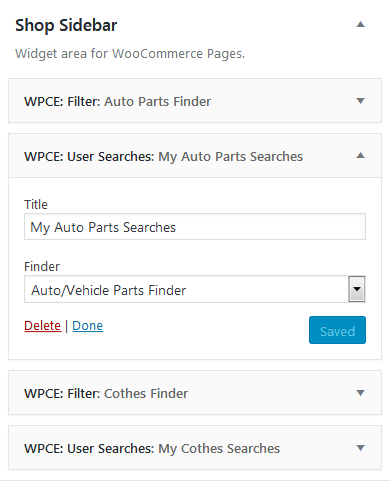
- WPCE: Filter
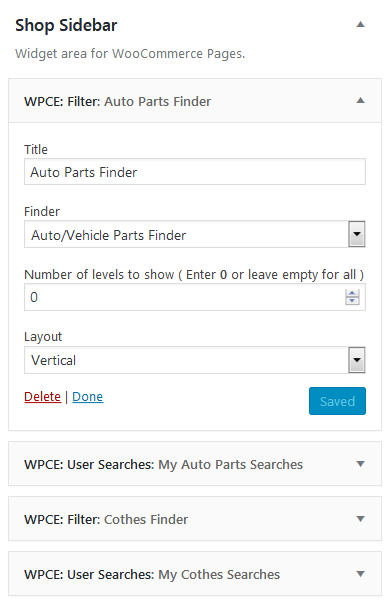
- The search form itself. Choose which finder it belongs to, how many levels to show, and whether it runs horizontally or vertically.
- WPCE: User Searches
- The customer's recent and saved searches for a finder. Requires history & saved searches to be enabled on that finder.
Shortcodes
Find each finder's ID on the Manage Finders screen.
Search form
- finder
- ID of the finder to display. Required.
- levels
- How many dropdowns to show. Leave it out to show all of them.
- layout
hfor horizontal,vfor vertical.
Recent and saved searches
- finder
- ID of the finder whose searches to list. Required.
Compatibility list for a product
- finder
- ID of the finder to list terms from. Required.
- product
- ID of the product. Optional, because on a product page it uses the current product.
Two finders, one installation
These run side by side on the same site. The plugin is identical in both. Only the level names and imported terms differ.
Auto parts
Four levels (Make, Model, Year and Engine) with the categories dropdown enabled as a fifth. The sidebar carries the form together with the customer's recent and saved searches.


Clothing
The same plugin with three levels: Brand, Type and Size. Nothing was configured differently; only the level names and terms changed.


When the upgrade notice appears
Some updates improve how WPCE stores its data so large catalogues stay fast. When one does, a notice appears in your admin with a Run Upgrade button.
- It waits for you. The upgrade never runs on its own, so you can pick a quiet moment for your store.
- Nothing is lost. Finders, terms, associations and settings all carry over. There is no need to re-import.
- It is not urgent. Until you run it, everything works exactly as before, you simply do not have the speed improvement yet.
- Administrators only. The notice and button are limited to users who can manage WooCommerce.
If something is not working
The usual causes, in the order worth checking.
- Dropdowns are empty
- No terms have been imported for that level yet, or every term at that level has no products attached. Turn on Show Empty Terms to confirm which it is.
- A product never appears
- It has no association with the selected terms. Open the product and check its finder panel, or re-import with the SKU column filled in.
- Search returns nothing
- Check Categories to Include and Exclude. A category restriction that excludes the products you expect is the most common cause.
- The finder does not show
- Creating a finder does not place it. Add the widget or shortcode, and make sure the shortcode's
finderID matches. - Catalogue stays filtered
- Remember Search is holding the last search. Enable the reset button so customers can clear it.
- Two finders interfere
- Set Remember Search to Category Pages Only so each finder works on its own categories.
- Product tab is missing
- The tab Title is required. Without it the tab will not render.
- Dropdowns load slowly
- Switch Terms Load Method between AJAX and JSON. Large term sets generally want AJAX.
- Import misses products
- SKUs in the CSV must match the SKUs on your products exactly. Blank SKUs cannot be matched.
Getting help
Thank you for purchasing WPCE. If something here does not cover your situation, get in touch and we will help where we can.
- Item
- WPCE, WooCommerce Parts Compatibility Editor
- Live demo
- wpce.wpinstinct.com
- Author
- WP Instinct
- Website
- wpinstinct.com
- wpinstinct@gmail.com
- Skype
- wpinstinct
WPCE, WooCommerce Parts Compatibility Editor. Documentation by WP Instinct.